How to use Machibito
Machibito puts the Claude Code sessions that are waiting for your reply on your Stream Deck +, so you can answer them right from the keys.
1. What it does
When a Claude Code session is waiting for you, Stream Deck + lets you notice it, read it, and answer it with a key.
NoticeSessions waiting for you line up on the keys, oldest first, with how long they have been waiting and why (Reply, Approval, Review). The top-left key shows how many are waiting, with a character that reacts to them.
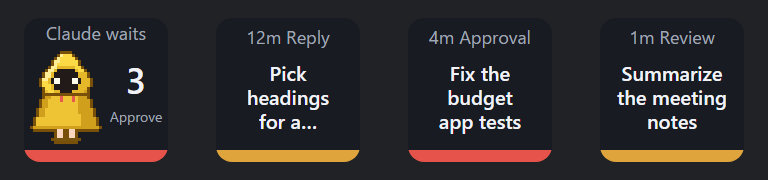
ReadPress a waiting key to see Claude's question and its reply on the touch strip. Turn a dial to scroll.

AnswerPress an answer key twice to send it to Claude. You can also answer with the suggestions Claude offers in the desktop app, pick an option, or approve the use of a tool.

It also shows:
- Work and wait timeline: the last 3 hours on the touch strip, showing when Claude was working (blue) and when it was waiting for you (orange).
- Usage: your 5-hour and weekly usage, and when you will hit 100% at your current pace.
- Your own character: swap the character on the top-left key for any image or GIF (4. Use your own character).
For a picture of the whole page and what each key and dial does, see the quick reference in 5. Everyday use.
2. What you need
- Windows 10 or later
- Stream Deck app 7.1 or later (Machibito will not install on older versions, so update first)
- Stream Deck + only (other models are not supported)
- Claude Code (the desktop app, the terminal, or VS Code)
3. Getting started (3 steps)
- Update the Stream Deck app, then install Machibito
First, update the Stream Deck app. You can check under Preferences → General → "Check for Updates…". Then install Machibito into the Stream Deck app from its page on Elgato Marketplace.
- Set up the Machibito page
In the Stream Deck app, put Machibito on all 8 keys and all 4 dials. Each spot gets its role from where it sits, so the order you place them in does not matter.
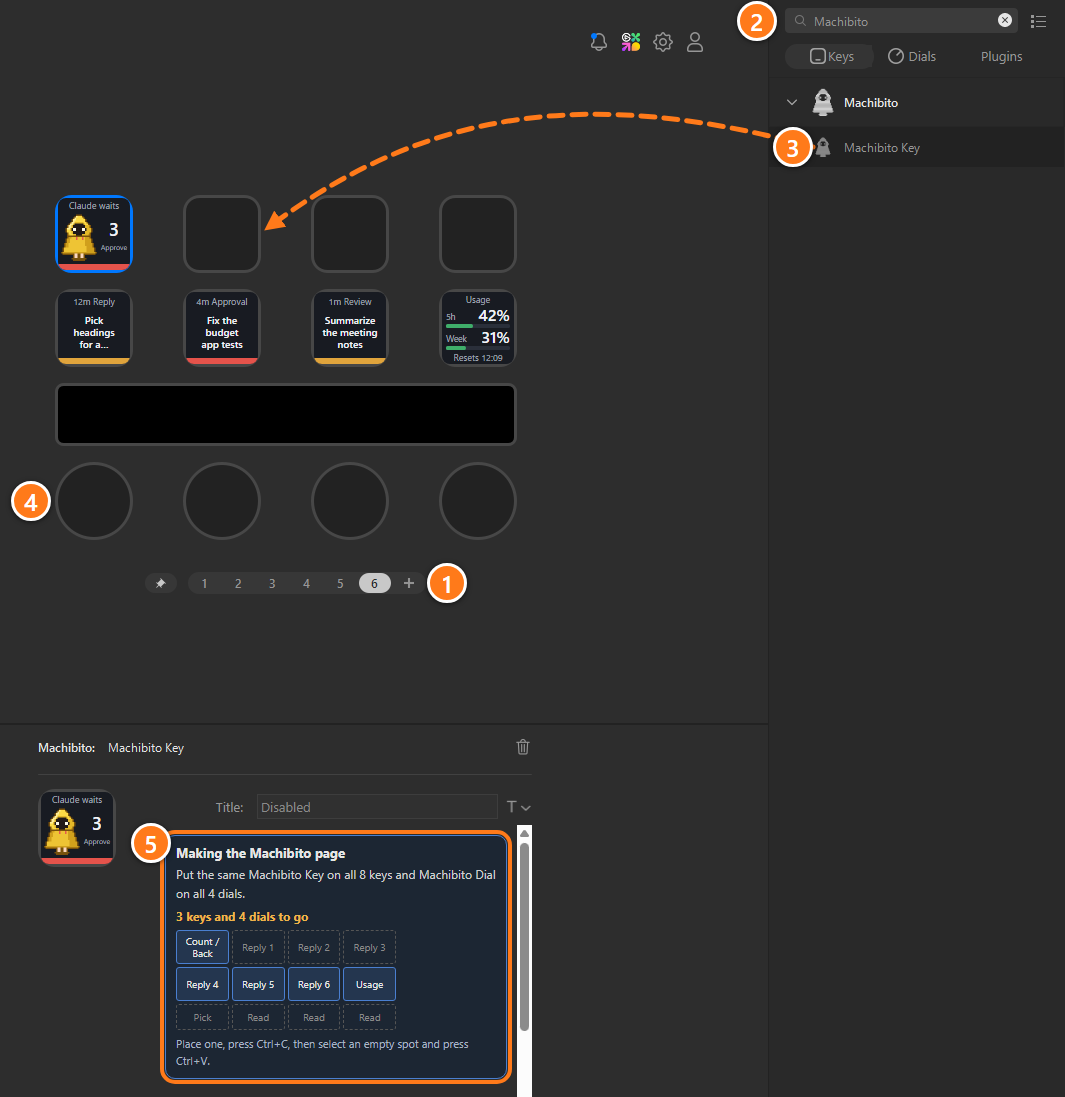
With 5 keys placed (the key images show sample sessions). The numbers match the steps below - Click "+" next to the page numbers at the bottom to add a page (or open an empty page if you have one).
- Type "Machibito" in the search box at the top right.
- Drag "Machibito Key" from the list on the right onto a key, and do the same for all 8 keys. To go faster, place one, press Ctrl+C, select an empty key, and press Ctrl+V.
- Select a dial. The list on the right switches to "Dials" and shows "Machibito Dial". Put it on all 4 dials.
- While you are placing them, select a Machibito key: the settings panel at the bottom shows "Making the Machibito page" and how many are left (for example, "3 keys and 4 dials to go"). This guide disappears once everything is in place.
- Ask Claude something
Ask Claude Code to do something. When Claude waits for your reply, the session shows up on a key, and you are all set. There is nothing to set up on the Claude Code side: the first time Machibito runs, it installs its plugin into Claude Code automatically.
Right after installing, the count key shows "No link". It goes away once you ask Claude something.
Once you are set up, try putting your own character on the key in 4. Use your own character. If something does not work, see 7. Troubleshooting.
4. Use your own character
You can replace the character on the count key (top-left) with any image you like. Use a character you drew or a favorite GIF, and the key that tells you about waiting sessions becomes your own.
- Open the character folder
In the Stream Deck app, select a Machibito key and click "Open the character folder" in the settings panel at the bottom. The folder
%APPDATA%\Machibito\Characters\opens. - Put images in the 3 folders
Put the image you want for each state in its folder. GIF (animated), PNG and JPG work.
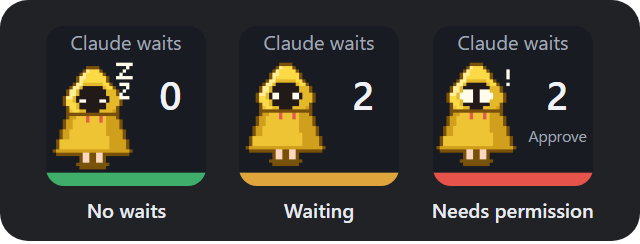
Folder When it shows idle No session is waiting (the bar under the key is green) waiting A session is waiting for a reply, a review or a choice (yellow) permission A session is asking to use a tool (red) - It changes in a few seconds
The key picks up the new image within a few seconds. You do not need to restart the Stream Deck app.
- If a folder holds several images, one of them is picked each time the key enters that state.
- If a folder is empty, that state shows the built-in raincoat character.
- Each file can be up to 8 MB and 2000 pixels on each side, and a GIF can have up to 300 frames. Frames shorter than 0.1 seconds are shown for 0.1 seconds.
- Files that cannot be read or are too large are skipped. The settings panel shows which files were skipped and why.
- When the Stream Deck app is set to Japanese, the folders have Japanese names instead (
キャラ\待ちなし,待ちありand許可待ちあり).
5. Everyday use
When a session is waiting
- Notice the count
The number on the top-left key goes up and the character reacts. The bar under the key is green when nobody is waiting, yellow when a session is waiting, and red when a session needs permission. This works even while you are in another app. Stream Deck never switches pages on its own.
- Press the waiting key
Waiting sessions line up on the keys, oldest first. Press one to switch to that session's screen; the session also opens in the Claude app. Press the top-left key to jump to the session that has waited the longest.
- Read it
The touch strip shows Claude's question, its current status (the gray line marked "Status") and the reply. A long reply starts partway through, marked "(…)". Turn any of the three dials on the right to scroll. Turn the left dial to move to another waiting session.
- Press an answer key twice
The first press shows "Press again" on the key. Press it again within 5 seconds to send. A single press never sends anything.
When Keys you get Claude asks in words (for example, "Shall I go ahead?") "Suggested" (the buttons Claude offers as next steps in the desktop app, up to 2) and "Your reply" (up to 4) Claude offers options The options ("Option 1" and so on; the recommended one shows as "Option 2 ★"). Only for questions where you pick one option Claude asks to use a tool "Allow once" and "Deny" (the kind of approval that stops Claude from asking again is not offered on the keys) You can still answer in the app or the terminal; whichever answer comes first counts. Terminal and VS Code sessions cannot receive typed replies, so keys for answering in words do not appear for them. Use "Show window" on the bottom-right key to bring that window to the front and answer there (options and approvals can still be answered from the keys).
- Back to the list
Once you have answered and the session is no longer waiting, Stream Deck goes back to the list. To go back yourself, press the top-left key or the left dial. It also goes back after a minute with no input.
Quick reference
Stream Deck shows two screens, the waiting list and the session screen, and the same keys and dials do different things on each. In this table, "enter" means the Stream Deck display switches, and "open" means the Claude app (or, for terminal and VS Code sessions, their window) comes to the front on your PC.
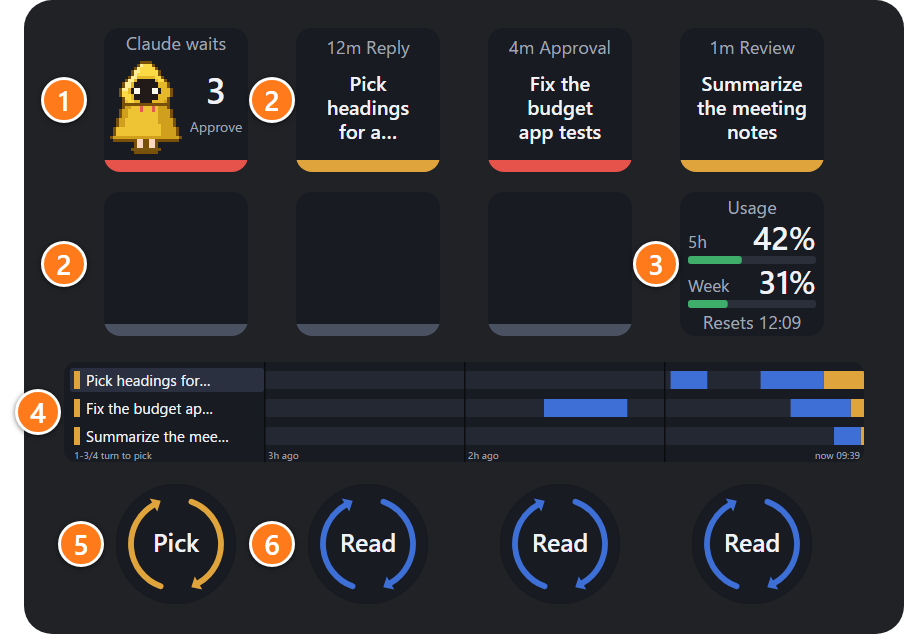
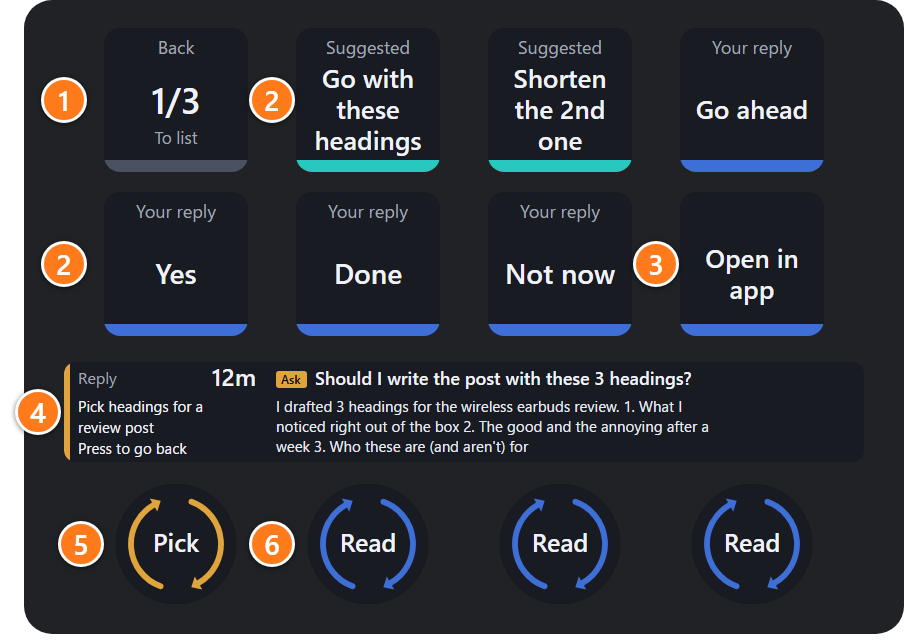
The numbers match the rows below. Click a picture to see it larger.
| Where | Waiting list | Session screen |
|---|---|---|
| ① Top-left key | ShowsHow many are waiting, and the character PressEnter the session that has waited the longest |
Shows"Back" and which wait this is (for example, 1/3) PressBack to the list |
| ② Reply slots (6) |
ShowsWaiting sessions, oldest first. If they do not all fit, the last slot becomes "More" ("First" on the last set) PressEnter that session |
ShowsAnswer keys PressTwice to send (the first press shows "Press again") |
| ③ Bottom-right key | ShowsUsage PressNothing |
Shows"Open in app" ("Show window" for terminal and VS Code sessions) PressOpen that session |
| ④ Touch strip | ShowsThe last 3 hours, one row per session: working time (blue) and waiting time (orange) TouchTouch the left section to clear the top row if it is green (done) |
ShowsClaude's question and the reply TouchNothing |
| ⑤ Left dial | TurnSelect a row in the timeline PressOpen the session in the top row |
TurnMove to another waiting session PressBack to the list |
| ⑥ Three dials on the right | TurnNothing |
TurnScroll the reply |
Check your usage
The bottom-right key shows your 5-hour and weekly usage. If your current pace would reach 100% before the limit resets, it shows when. The values update whenever you use Claude Code. For what the labels on the key mean, see 6. What the labels mean.
6. What the labels mean
Small text on the count key (top-left)
Bold yellow text is a notice that you may want to act on. Only one shows at a time, in the order of this table. Gray text just shows the current state.
| Text | Meaning | What to do |
|---|---|---|
| No link | Machibito's Claude Code plugin has not reported anything yet. It shows right after installing, and when the plugin has been removed or turned off | Ask Claude something. If it stays, see 7. Troubleshooting |
| Failed | A reply sent from a key did not go through (shown for 1 minute) | Answer in the app |
| Unsure | Machibito could not confirm that a reply sent from a key arrived | Check in the app |
| +3 more, etc. | On a page with only one reply slot, the number of waits that do not fit (from 10 on, shown as "+12") | Add reply slots, or look on the Machibito page |
| Sent | A reply sent from a key went through (shown for 1 minute) | — |
| Approve | A session is waiting for permission to use a tool | — |
| Done 2, etc. | The number of sessions that have finished | — |
Kinds of waiting keys
| Text | Meaning |
|---|---|
| Reply | Claude asked a question and is waiting for your reply |
| Choice | Claude offered options and is waiting for you to pick one |
| Approval | Claude is waiting for permission to use a tool |
| Review | Claude finished the work and is waiting for you to review it (a status from the desktop app) |
| Waiting | Claude has stopped, but the kind of wait is unknown |
The usage key
| Text | Meaning |
|---|---|
| Resets 21:50 | When the 5-hour limit resets |
| 5h 100% at 21:50 Week 100% Fri 17:00 | At your current pace, when you would reach 100% before the limit resets |
| Old 21:10 | The values are more than 30 minutes old; 21:10 is when they were read. They update when you use Claude Code |
| Usage as of 21:10 | The values are old, but the forecast time has not come yet, so the forecast is still shown |
| No data yet | No values have been read yet. They appear once you use Claude Code |
Notices when you send a reply
If a reply cannot be sent, the key says why. "Not sent" means nothing was sent.
All notices
| Text | What to do |
|---|---|
| The PC is locked. Not sent | Unlock the PC and press again |
| A full-screen app is in front. Not sent | Leave full screen and press again |
| You are using the PC. Stop typing and press again | Take your hands off the keyboard and mouse, then press again |
| Claude app window not found. Not sent | Open the Claude app and press again |
| A different screen opened. Not sent | Answer in the app |
| Input box not found. Not sent | Answer in the app |
| The app menu did not close. Not sent | Close the menu and press again |
| Could not bring the app to the front. Not sent | Bring the app to the front and press again |
| There is a draft in the input box. Check the app | Send or delete the draft in the input box, then press again |
| Could not verify the paste. Not sent | Press again, or answer in the app |
| Not sure it was sent. Text is left in the input box | Check in the app |
| Question window not found in the app. Answer on screen | Answer in the app (for options) |
| No option with that name. Answer on screen | Answer in the app |
| Could not pick the option. Answer on screen | Answer in the app |
| Not sure it was sent. The question is still open | Check in the app |
"Status" in the settings panel
Select a Machibito key in the Stream Deck app, and the settings panel at the bottom shows "Status". "Working normally" means you are all set. If it says "Not ready yet", the reason is shown with it (see 7. Troubleshooting).
7. Troubleshooting
| What happens | Cause | Fix |
|---|---|---|
| Installing fails with "This plugin requires Stream Deck 0.0 or later. Go to Preferences to get the latest version, then try again." | The Stream Deck app is older than 7.1 | Update it from Preferences → General → "Check for Updates…", then try again |
| Machibito does not appear in the list on the right after installing | This can happen right after installing or updating (Elgato's developer documentation) | Quit the Stream Deck app and start it again |
| "No link" stays on the count key | Machibito's Claude Code plugin is not running yet | Look at "Status" in the settings panel and follow the reason shown there (the next 3 rows) |
| The settings panel says "Not ready yet" | The plugin could not be installed into Claude Code automatically | Click "Install in Claude Code" in the settings panel |
| It says "Claude Code not found" | Neither the Claude desktop app nor Claude Code is installed on this PC | Install one of them, then click "Install in Claude Code" again |
| It says "Couldn't install" and pressing again does not help | A Claude Code command failed | Type the two commands shown in the settings panel into Claude Code's input box |
| Sessions that were open before installing do not show up | They were opened before the plugin was loaded | In the desktop app, sessions that were open before the install also show up from the next exchange. In the terminal or VS Code, type /reload-plugins in that session's input box; it shows up from the next exchange |
| No reply keys appear, or approvals cannot be answered from the keys | Some spots on the page do not have Machibito | Put Machibito on all 8 keys and 4 dials. The settings panel shows what is missing (see "Use only some spots" in 8. Make it yours) |
| Terminal and VS Code sessions have no keys for answering in words | Only desktop app sessions can receive typed replies | Use "Show window" on the bottom-right key to bring the window to the front and answer there |
| Pressing a VS Code session makes VS Code ask whether to allow the Claude Code extension to open a URI | This is VS Code's own prompt; Machibito cannot turn it off | Tick the option to stop asking for this extension and choose to open it; VS Code will not ask again |
| You changed Claude Code's settings folder, and sessions do not show up | The environment variable CLAUDE_CONFIG_DIR is set only inside the terminal | Set it as a Windows user environment variable (under "User variables"), then restart the Stream Deck app |
| The usage key says "Old" | Claude Code has not been used for a while | It updates once you use Claude Code |
8. Make it yours
Change the replies
Select a Machibito key in the Stream Deck app and edit the four "Your reply" texts under "Replies" in the settings panel. They start as "Go ahead", "Yes", "Done" and "Not now". A blank one does not appear as a key.
Use only some spots
You can put other actions in spots whose role you do not need; they keep working as usual. But leaving the following spots empty turns off the matching feature, and the settings panel tells you why.
- Both the top-left key and the left dial: there is no way back, so no reply keys appear
- One reply slot or none (keys 2 to 4 on the top row and keys 1 to 3 on the bottom row): no reply keys appear (you need at least 2)
- Either the 2nd or the 3rd key on the top row: approvals cannot be answered from the keys
- The left dial (when other dials are placed): you cannot select rows in the list
See the count on other pages
Put a single "Machibito Key" on another page and it becomes the count key with the character. Press it to open the session that has waited the longest (or the Claude app if nothing is waiting).
9. How to uninstall
- First, delete the Machibito page: in the Stream Deck app, right-click the page number, choose "Delete", and confirm with "Delete" again.
- Then, in the Stream Deck app's Preferences, open "Plugins" and uninstall Machibito.
To remove what is left
- Delete any Machibito keys on other pages, or "?" keys left on a page, by right-clicking them and choosing "Delete".
- The plugin installed into Claude Code stays, but it does nothing and writes nothing. To remove it, type
/plugin uninstall machibito@machibitoand/plugin marketplace remove machibitoin Claude Code's input box.
10. What Machibito does on your PC
- It does not read your login keys and sends nothing over the internet. The wait records are only files on your PC (
%USERPROFILE%\.claude\machibito\and%APPDATA%\Machibito\). - It installs a plugin into Claude Code. Claude Code's settings file (
%USERPROFILE%\.claude\settings.json) gets the location of Machibito's plugin and a mark that turns it on. Each time Machibito starts, it checks that the plugin is installed and reinstalls it if not. When Machibito is updated, the plugin is updated too. To keep Machibito but turn the plugin off, open/pluginin Claude Code's input box and disable machibito. Machibito will not turn it back on. - It sends a reply only when you press a key. Each double press sends one message: it pastes the text you chose into the Claude desktop app's input box and sends it. Your clipboard is restored afterwards, and the pasted text is not kept in the clipboard history. Nothing is sent while the PC is locked, while a full-screen app is in front, or while you are using the PC.
- It receives approval and option answers only inside your PC. Requests from the Claude Code plugin come in through an endpoint that only this PC can reach (127.0.0.1, port 47283).
- It also reads undocumented internal files. Some features, such as session names, the kind of wait, opening a session in the app, sending replies, and dropping sessions whose window was closed, read undocumented internal files of the Claude app and Claude Code. If an update makes them unreadable, only that feature stops; everything else keeps working.
- Third-party components: Machibito includes MIT-licensed components (@elgato/streamdeck, @elgato/schemas, @elgato/utils, ws, zod, omggif). Their authors and license texts are in
THIRD_PARTY_NOTICES.txtin the Machibito folder and in licenses.txt on this site. - Machibito is a Forecraft product and is not made by Anthropic.
Contact: support@forecraft.jp